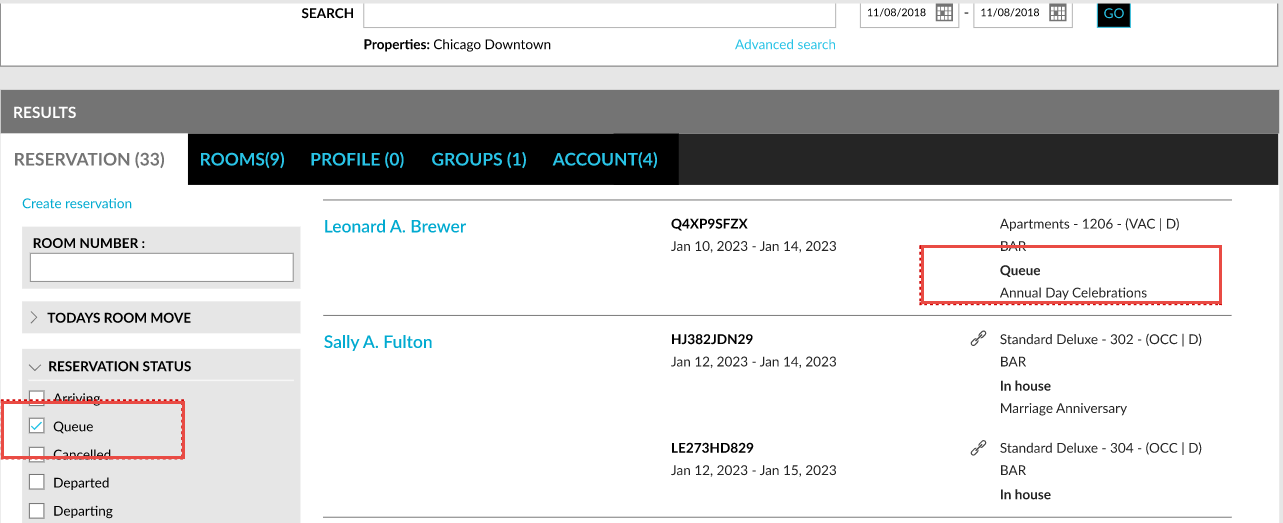
Ability to Queue Rooms in Stay
Stay allows users to queue rooms that are not immediately available to be assigned to the reservations. These rooms are displayed on the Queue Rooms dashboard that helps the housekeeping staff to prioritize their efforts to get these rooms ready for check-in.
Property Settings
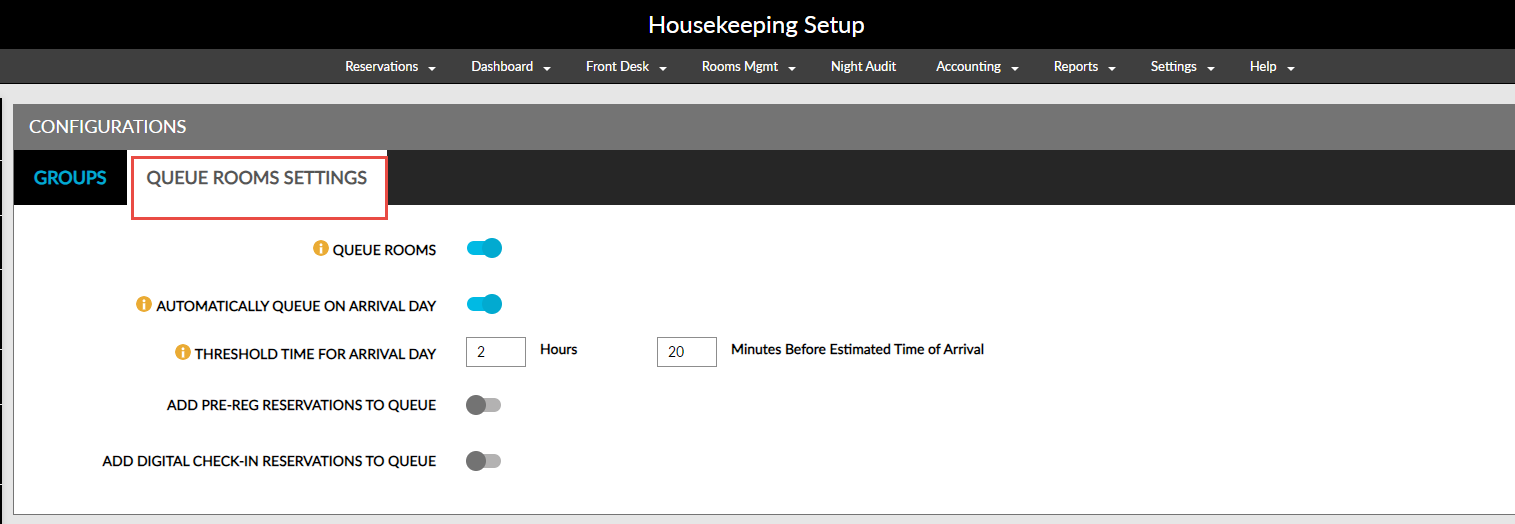
The following settings in the Housekeeping Setup screen (Rooms Mgmt ➜ Housekeeping ➜ Setup ➜ Config ➜ Queue Rooms Settings) must be configured to queue rooms for guests:
|
Settings |
Description |
|---|---|
|
Queue Rooms |
When this flag is enabled, the rooms will be queued based on the room assignment and housekeeping conditions. |
|
Automatically Queue on Arrival Day |
|
|
Threshold Time for Arrival Day |
|
|
Add Pre-Reg Reservations to Queue |
|
|
Add Digital Check-In Reservations to Queue |
|
Permissions
The following permission must be assigned to manage user access to enable/disable the Queue Rooms flag on the Housekeeping Setup screen:
-
Stay_ManageQueueRooms
This permission is provided to the following roles by default:
-
System Administrator
-
Stay Hotel Manager
-
Department Manager
-
Stay Hotel Supervisor
-
Stay Housekeeping Supervisor
-
HK Supervisor
-
GSA Supervisor
The following permission must be assigned to manage user access to edit the queue room settings on the Housekeeping Setup screen:
-
Stay_EditQueueRoomsSettings
Users without this permission can only view the queue room settings but cannot modify them.
This permission is provided to the following roles by default:
-
System Administrator
-
Stay Hotel Manager
The following permission must be assigned to manage user access to add/remove queue rooms, change the priority, and perform other actions on the queue rooms dashboard:
-
Stay_AddRemoveEditQueueRooms
Users without this permission can only view the queue rooms dashboard but cannot add, remove, or edit queue rooms.
This permission is provided to the following roles by default:
-
System Administrator
-
Stay Hotel Manager
-
Stay Hotel Supervisor
-
Stay Front Desk
-
GSA Supervisor
-
Guest Service Agent
-
Stay Housekeeping Supervisor
-
HK Supervisor
Adding Reservations to Queue
Only the reservations that are set to arrive on the current property date can be added to the Queue Rooms dashboard. Reservations can be added when there is no room assigned or when the assigned room is not ready for check-in.
Reservations are added to the Queue Rooms dashboard based on the following conditions:
-
The threshold time configured in the queue room settings
-
Digitally checked in reservations (via Express Mobile)
-
Pre-registered reservations
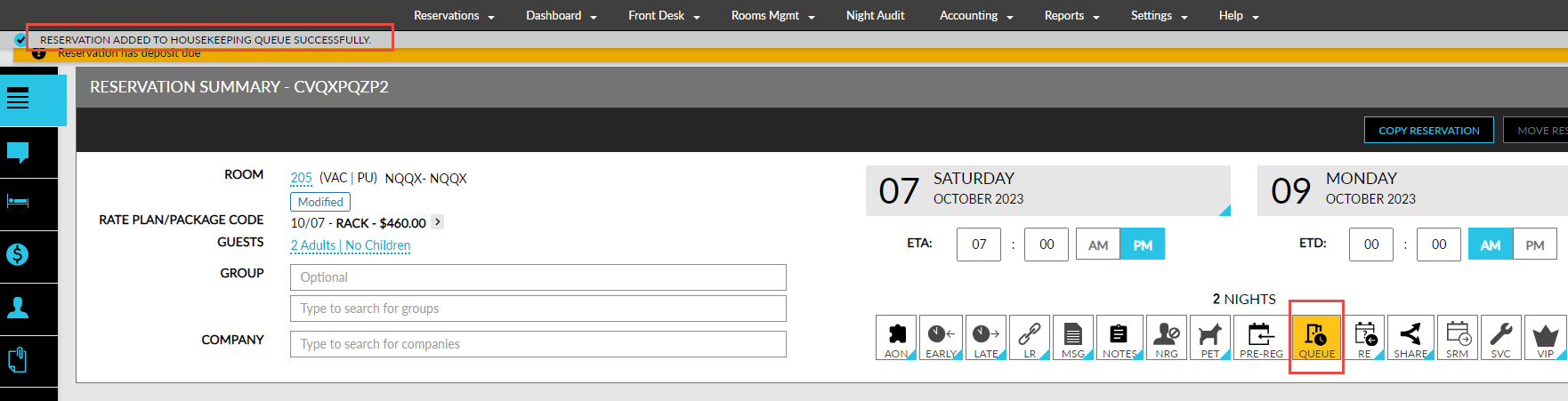
Users can also add reservations to queue manually by enabling the Queue Rooms badge on the Reservation Summary section of the reservations. This badge appears if a room is yet to be assigned for the scheduled room move to be performed on the current property date, or if the assigned room is not ready for check-in.
Removing Reservations from Queue
Users can remove reservations from queue by clicking the Queue Rooms badge on the Reservation Summary section of the reservation. When clicked, the reservation will be removed from queue and the badge will no longer be highlighted.
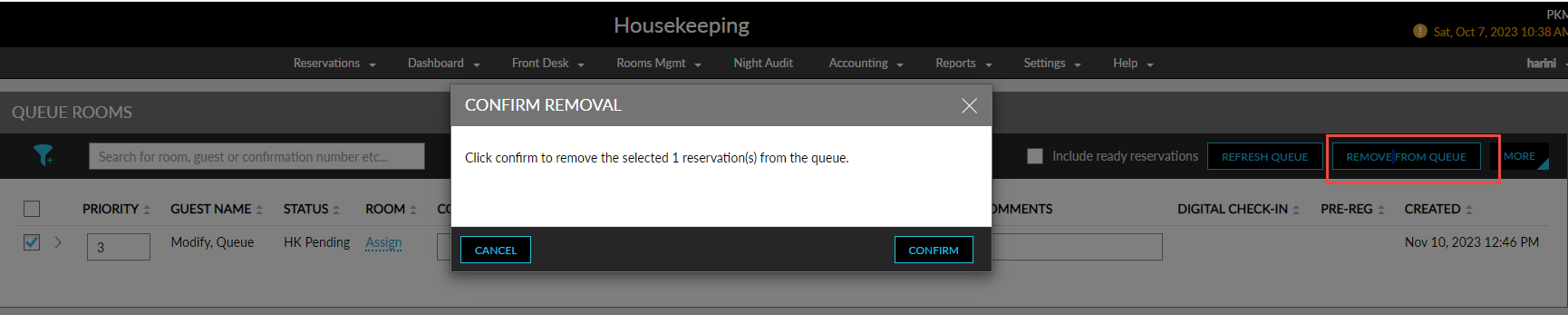
Users can also remove reservations from the Queue Rooms dashboard by selecting the reservation and clicking the Remove from Queue option. When clicked, the Confirm Removal pop-up screen appears that prompts users to confirm the removal of the reservation. When users click Confirm, the reservation is removed from queue.
The reservations that are checked in, or marked as Cancelled or No-Show, or moved to other properties are removed from the dashboard automatically.
When the arrival date of a reservation in queue is moved to a future date, the reservation is removed from the queue automatically. On the modified arrival date, the reservation is added back to the queue once the threshold is met, and the badge is highlighted for the reservation.
Queue Rooms Dashboard
The Queue Rooms section of the Housekeeping screen displays the Queue Rooms dashboard. This dashboard displays the following columns:
|
Column |
Description |
|---|---|
|
Priority |
|
|
Room |
|
|
Room Type |
|
|
Guest Name |
|
|
Confirmation |
|
|
HK Condition |
|
|
Do Not Move |
|
|
Early Check-In |
|
|
ETA |
|
|
Contact Number |
|
|
Comments |
|
|
Status |
Displays the following status for the reservations:
|
|
Adults |
|
|
Children |
|
|
Group Code |
|
|
Rate Code |
|
|
VIP Level |
|
|
Loyalty Program |
|
|
Pre-Reg |
|
|
Digital Check-In |
|
|
User |
|
|
Created |
|
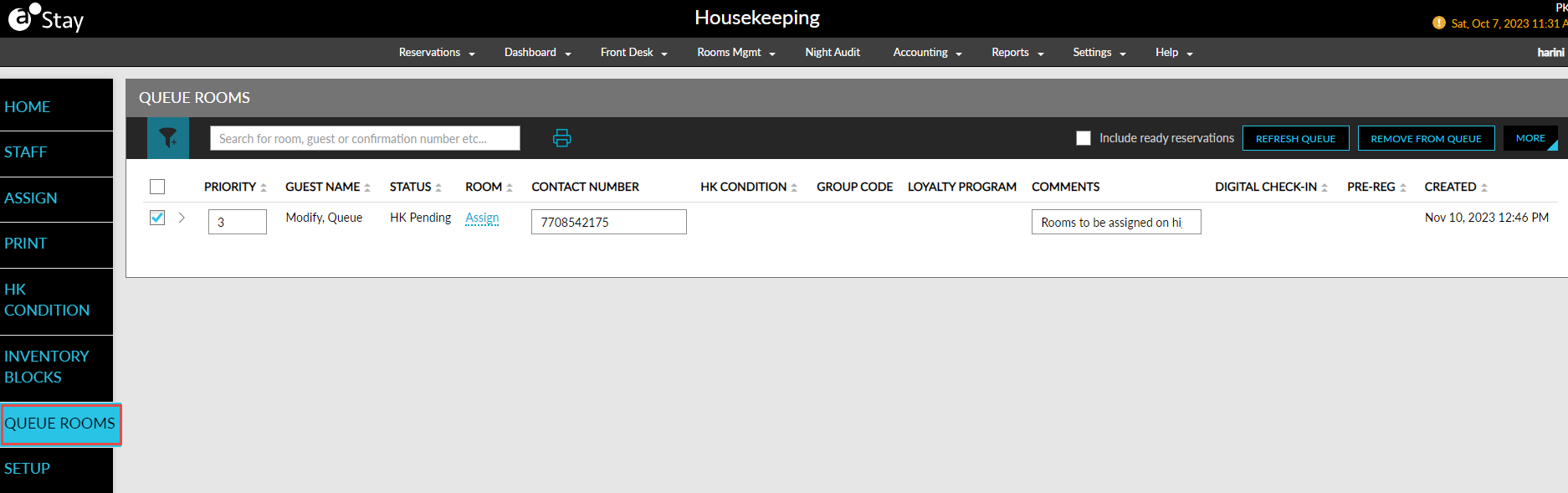
When the housekeeping condition for the room is modified by users manually, the status of the reservation in queue updated accordingly. By default, the reservations with Ready status are not displayed in the dashboard. Users must enable the Include Ready Reservations checkbox to display reservations with Ready status. The reservations are displayed in the respective order of priority.
The Queue Rooms dashboard can be customized like the dashboard on the Waitlist and Inquiry screen. Users can print the records using the Print icon on the dashboard.
Users can remove reservations from queue by clicking the Remove from Queue option on the dashboard or under More. When clicked, the Confirm Removal pop-up screen appears that prompts users to confirm the removal of the reservation. When users click Confirm, the reservation is removed from queue.
Users can add/remove columns to be displayed on the dashboard by clicking the Column Preferences option under More. When clicked, the Set Column Preference screen appears that allows users to select the required columns.
Updating the Priority of Reservations in Queue
Priority is assigned to the reservations on a first-come first-served basis. Users can manually modify the priority of the reservations. For example, if the priority of a reservation is changed from 7 to 1, then the seventh reservation is moved to the first and the reservations from 1-6 are changed from 2-7. Once the priority is updated, users must save the changes made to refresh the queue with the updated priorities.
When a user tries to make changes to the reservations in queue simultaneously when a different user is already making changes, the Update pop-up screen appears when users click Save that displays the following information: The queue has been updated by <username>. Please refresh the queue to view the latest details or click Proceed to update the updated priorities, where <username> displays the user who last updated the queue. Users must click Proceed to save the changes made to the reservations. The priorities are displayed based on the latest updates made.
Users can select multiple reservations and click the Move to Top option under More to move the selected reservations to the top of the priority order. When clicked, the Confirm Priority Change pop-up screen appears that prompts users to confirm if the selected reservations must be moved to the top of the queue. Users must click Confirm to complete the action.
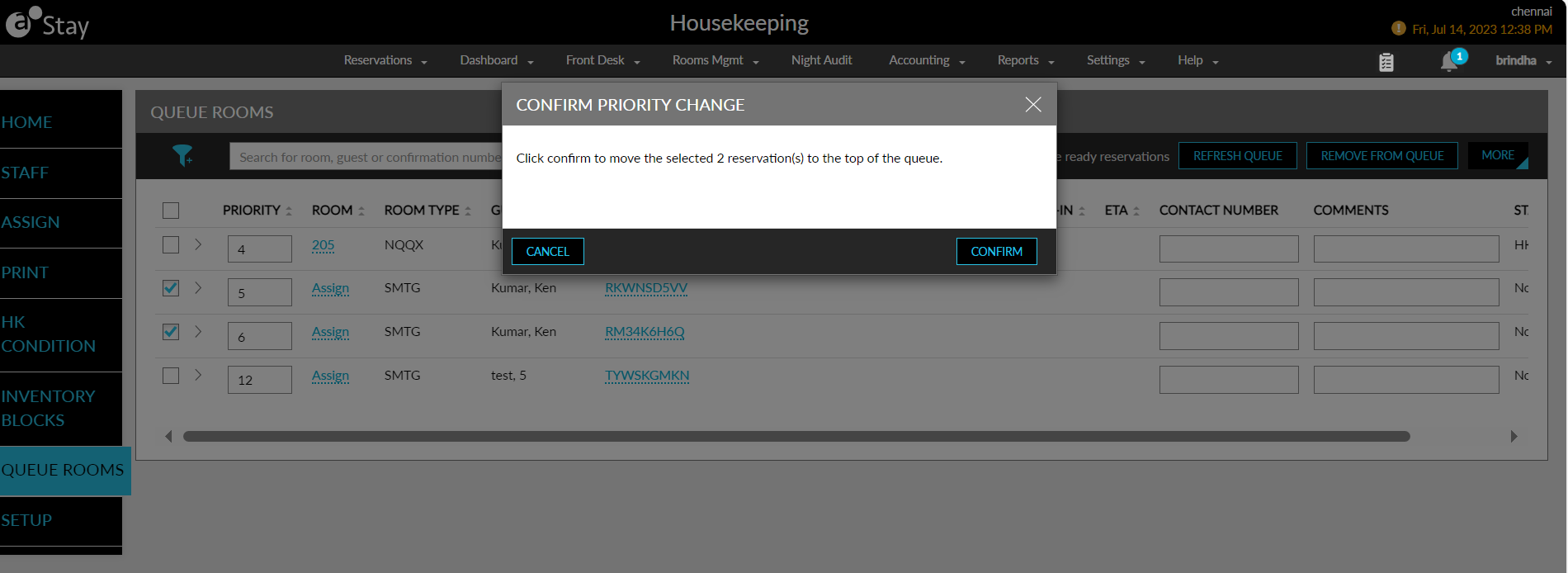
Users must click the Refresh Queue button to manually refresh the dashboard with the latest updates made to the reservation.
Auto Assignment of Rooms
If a reservation is queued without being assigned a room, a room is automatically assigned from the same room type from the list of available rooms and added to the dashboard. If no room is available, the hyperlink, Assign, is displayed. This hyperlink is enabled when a room is available.
Priority is assigned to the reservations on a first-come, first-served basis. This priority can be manually modified by the users. The following conditions boost the priority of the reservations:
-
Pre-Reg
-
Digital Check-In
If a reservation was already queued and one of the above conditions becomes true, the reservation is automatically pushed to the top of the queue.
Similarly, an arriving reservation is automatically queued as the top priority if one of these conditions is met, provided no room is assigned, or the assigned room is not ready for check-in.
Logs
A log is created in the Reservation History section and in the Audit Log screen for the Entity Type, Reservation, for the following conditions:
-
When a reservation is added or removed from the queue
-
The queue status is changed in the dashboard
-
When the contact is added/modified in the dashboard
-
When comments are added/modified in the dashboard
The record in the Audit Log screen is created in the following format when reservations are added/removed from the queue:
-
Added Queue Rooms True
-
Added Queue Rooms/Status HK Status
-
Removed Queue Rooms True
-
Removed Queue Rooms/Status HK Status
-
Queue Rooms / Status changed from Status 1 to Status 2
Here, HK Status denotes the status of the reservation, Status 1 denotes the initial status of the reservation, and Status 2 denotes the updated status of the reservation.
The status of the reservations in queue is displayed as Queue in the Reservation and Search screens.
Mobile View of Staff Mobility-Housekeeping
The reservations in queue are displayed in the mobile view of the Staff Mobility-Housekeeping screen in the Queue Rooms section. This section displays the following details:
-
Priority
-
Room Number
-
Room Type
-
Confirmation Number
-
Guest Name
-
Queue Status
Users can search for records using the room number, confirmation number, or the guest name and filter records using the Room Type and Queue Status columns.